What Is Microsoft Power Automate? Complete Beginner’s Guide
Microsoft Power Automate is a workflow and business-process automation platform that helps individuals and organizations automate repetitive tasks, connect applications, move information between systems and create automated business processes.
Instead of manually performing the same sequence of activities every day—such as downloading an email attachment, entering information into Excel, sending notifications and requesting approvals—a Power Automate workflow can perform many of these steps automatically.
For professionals looking to develop automation skills, Power Automate is particularly useful because it combines low-code workflow automation with desktop automation, Microsoft 365 integration, RPA and AI-assisted capabilities.
What Is Microsoft Power Automate?
Power Automate is part of Microsoft’s Power Platform ecosystem.
It can be used to create workflows that respond to events, run according to a schedule or start when a user requests them.
For example:
New employee joins → employee information is received → documents are processed → HR is notified → manager approval is requested → welcome email is sent.
Instead of manually coordinating every step, Power Automate can automate the workflow.
Why Is Power Automate Important?
Businesses perform thousands of repetitive activities every day.
Examples include:
- Sending emails
- Updating spreadsheets
- Moving files
- Creating notifications
- Requesting approvals
- Processing forms
- Updating records
- Generating reports
- Collecting information
- Transferring data between applications
Manual processes consume time and can introduce errors.
Power Automate helps organizations automate these processes and improve consistency.
How Does Power Automate Work?
A basic Power Automate workflow generally contains:
Trigger
The trigger determines when the workflow starts.
Examples:
- A new email arrives
- A new file is created
- A record is added
- A scheduled time is reached
- A user selects a button
Action
An action is something Power Automate performs after the trigger.
Examples:
- Send an email
- Create a file
- Update Excel
- Create a SharePoint item
- Send a Teams notification
- Request approval
Condition
Conditions allow the workflow to make decisions.
For example:
If invoice amount > ₹50,000 → request manager approval.
Otherwise:
Send the invoice for normal processing.
Types of Power Automate Flows
Power Automate supports different approaches to workflow automation.
Automated Cloud Flows
These start automatically when a predefined event occurs.
Example:
When a new employee record is added, send an email to HR.
Instant Cloud Flows
These are manually initiated by a user.
Example:
Click a button to send a report to management.
Scheduled Cloud Flows
These run according to a schedule.
Example:
Every Monday at 9 AM, send the weekly sales report.
Desktop Flows
Power Automate Desktop can automate tasks performed on computers and web applications.
Examples include:
- Opening applications
- Entering data
- Extracting information
- Processing files
- Automating browser activities
Power Automate and Microsoft 365
Power Automate can be particularly useful for organizations already using Microsoft 365.
Common automation scenarios involve:
- Excel
- Outlook
- SharePoint
- Microsoft Lists
- Teams
- OneDrive
- Forms
For example:
Microsoft Forms → Power Automate → Excel/SharePoint → Approval → Outlook notification
This can eliminate many manual steps.
Power Automate and Excel
Excel users can use Power Automate to automate repetitive spreadsheet-related processes.
Examples include:
- Reading Excel records
- Updating records
- Sending emails based on Excel information
- Creating reminders
- Processing employee data
- Generating notifications
This makes Power Automate particularly useful for MIS, HR, finance and operations professionals.
Power Automate and RPA
Power Automate Desktop supports robotic process automation scenarios.
RPA is useful when employees repeatedly interact with desktop applications or websites.
For example:
- Open a business application.
- Read information.
- Copy the information.
- Open Excel.
- Enter the information.
- Save the file.
- Send a notification.
A desktop flow can automate much of this process.
Power Automate and Copilot
AI-assisted capabilities can help users create and understand workflows using natural-language instructions.
For example, a user may describe a requirement such as:
“When a new Excel record is added, send an email to the responsible manager.”
Power Automate’s AI-assisted features can help users build or modify workflows.
Who Should Learn Power Automate?
Power Automate is useful for:
- Business analysts
- MIS professionals
- Data analysts
- HR professionals
- Finance professionals
- Operations professionals
- Project managers
- Administrators
- Developers
- Microsoft 365 users
- RPA professionals
- Students interested in automation
Do You Need Programming Knowledge?
You do not need advanced programming knowledge to start learning Power Automate.
Basic Power Automate workflows can be developed using triggers, actions, conditions and visual configuration.
Advanced users can benefit from understanding:
- Expressions
- JSON
- APIs
- HTTP
- Scripting
- Data structures
Power Automate Career Opportunities
Power Automate can complement careers in:
- Business analysis
- Process automation
- RPA
- Digital transformation
- Operations
- Microsoft 365 administration
- Data analysis
- Workflow development
It is particularly valuable when combined with skills such as:
Excel + Power BI + Power Automate
or
Microsoft 365 + Power Automate + RPA
Learn Power Automate in Kolkata and Online
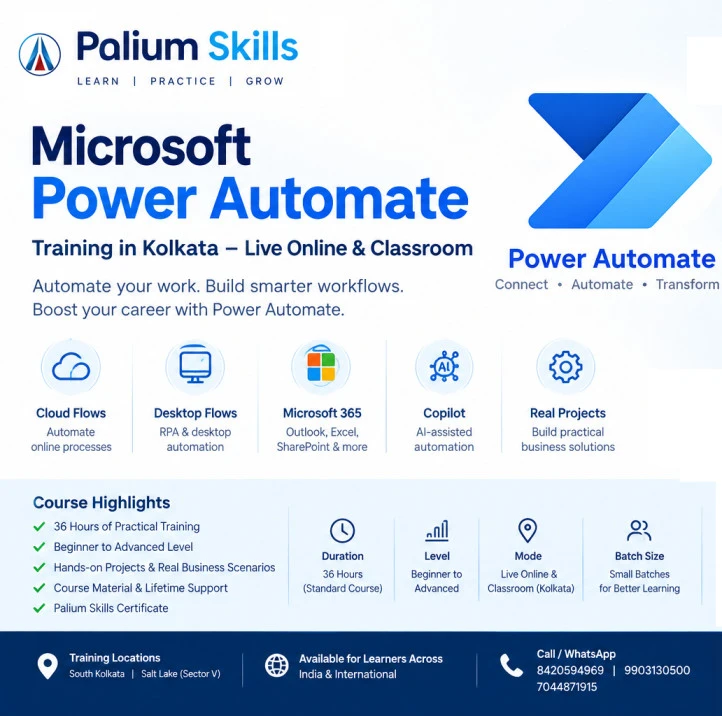
Palium Skills offers Power Automate Training in Kolkata and Live Online covering cloud flows, Power Automate Desktop, RPA, Microsoft 365 automation, Copilot and practical business projects.
The course is taught by S. Das, an IT industry professional with 30 years of IT industry experience.
Power Automate Training in Kolkata
Microsoft Power Automate provides a practical way to automate repetitive workflows and connect business processes.
For beginners, the best approach is to start with simple cloud flows and gradually move toward advanced expressions, desktop automation, RPA, APIs and AI-assisted automation.
Power Automate is not simply an email automation tool—it can become a powerful platform for business-process automation.
Related Courses
Learners interested in automation and Microsoft technologies may also explore: